
Easily mask images by placing them into frames. Use the Frame Tool (K) to quickly create rectangular or elliptical placeholder frames. You can also convert any shape or text into frames and fill it with images.
Saturday, December 22, 2018
What is new in After Effects cc 2019
After Effects CC
Advanced puppet tools for mesh sculpting
New Advanced and Bend pins let you precisely twist, bend, curve, and scale animations.
Native 3D depth passes
Generate a depth pass with the After Effects Classic 3D or CINEMA 4D renderer. Composite objects quickly and easily in 3D space. Apply depth effects such as Depth of Field, Fog 3D, and Depth Matte so elements look natural, or use depth data to simulate 3D looks.
Easier and faster expressions
A new JavaScript expression engine supercharges your animation workflow and processes expressions up to 6 times faster. Write expressions with a new editor that makes creating expressions more accessible.
Responsive Design — Time
Create motion graphics that can adapt to changes in length while preserving the integrity of protected keyframes. Export your designs as Motion Graphics templates for increased editorial flexibility.
Selective color grading with Lumetri Color
Take the guesswork out of curve adjustments with innovative new Lumetri Color tools for selective color correction. Each curve has two axes with paired values, making it easy to fine-tune colors accurately.
Display color management
Get accurate color representations and maintain color fidelity across your workflow, from After Effects to Premiere Pro and on rec709, rec202, and P3 displays.
Improved Motion Graphics templates file exchange with Premiere Pro
Access, modify, or replace CSV and TSV spreadsheet data in Premiere Pro to create dynamic, data-driven templates. Group controls so it’s easy to find editable properties in your Motion Graphics templates. Unlock font settings to let editors change fonts.
Native Mocha AE plug-in for After Effects
Get fast, accurate, precision planar tracking with the GPU-accelerated Mocha AE plug-in. It’s updated with a simplified interface, includes retina/high DPI support and works natively inside After Effects.
Create in VR 180, preview in headset
Jump into immersive video with support for 180 VR. Add VR effects and work with 180 and 360 material interchangeably. Publish finished videos in the Google VR 180 format on YouTube or other platforms. A new Theatre Mode option allows you to preview rectilinear content in a head-mounted display (HMD).
Performance and GPU optimisations
New GPU- and performance-optimising effects include Fill, Curves, Exposure, Noise, Tritone, Set Matte and Colour Balance. The Wave Warp effect is now multi-threaded and renders 2-3x faster by using multiple CPU cores. Experience faster H.264 and HEVC decoding on the latest macOS.
Master Properties refinements
Master Properties now enable more advanced workflows with support for Collapse Transformations, Time Remap, audio effects, motion blur, mask and shape path expressions, 3D cameras and lights.
Learn Panel
After Effects beginner? The new Learn panel introduces you to the Timeline and controls via interactive tutorials to start you creating your composition quickly.
Tighter integration with Animate and XD
Import Animate .fla files as layered compositions directly into After Effects. Send your XD designs to After Effects with high fidelity to add advanced animation or build them into your motion graphics projects.
Group invites for Team Projects
Invite groups and team members from your enterprise address book — without typing in addresses — for more efficient communications.
Format support improvements
Get better performance from Panasonic, RED and Sony camera formats with the latest support.
Creative Cloud Library improvements
Drag and drop assets such as Illustrator or Photoshop files into your CC Libraries panel to quickly access your After Effects compositions. Share your Libraries and assets with team members or export and store them with your project.
And so much more
Also includes easier ways to find GPU-accelerated effects, instal scripts and quickly enable or disable expressions.
Learn what's new in the latest release of Photoshop CC.
Learn what's new in the latest release of Photoshop CC.
Frame Tool for easy masking

To place an image into a frame, simply drag an Adobe Stock asset or a libraries asset from the Libraries panel or from your local disk — the image automatically scales to fit the frame. Content placed in frames is always placed as Smart Objects so that it can be scaled non-destructively.
For detailed information, see Place images into frames.
A new, dedicated Content-Aware Fill workspace provides you an interactive editing experience to achieve seamless fill results. You can now choose which source pixels to use and rotate, scale, and mirror the source pixels thanks to Adobe Sensei technology. You also get a live full-resolution preview of the changes and an option to save the result to a new layer.

To launch the Content-Aware Fill workspace:
- Open an image in Photoshop. Using any selection tool, create an initial selection of the area you want to fill.
- From the menu bar, choose Edit > Content-Aware Fill.
In the Content-Aware Fill workspace, the document window displays the default sampling area as an overlay mask on the image. You can use the tools provided in the Tools panel (at the left of the screen) to modify the sampling area and your initial selection of the fill area. In the Content-Aware Fill panel (at the right of the screen), you can specify sampling options, fill settings, and output settings to get the desired fill result in the image. As you make changes, the Preview panel displays a live full-resolution preview of the output.
For detailed information, see Remove objects from your photos with Content-Aware Fill.
You can now use Control + Z (Win) / Command + Z (Mac) to undo multiple steps in your Photoshop document, just like in other Creative Cloud apps. The new multiple undo mode is enabled by default.
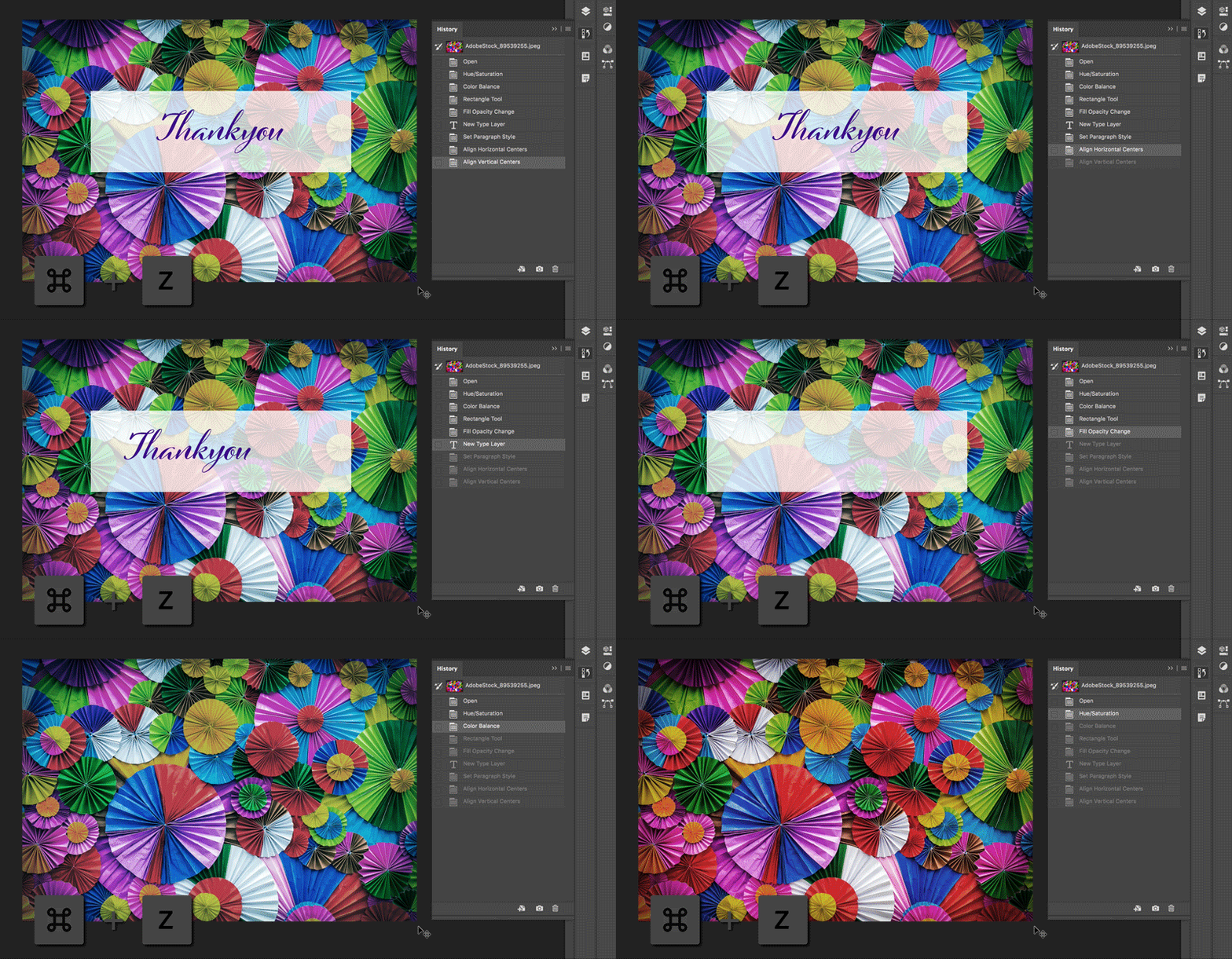
With the new multiple undo mode, the Edit menu displays the following commands:
- Undo: Moves one step back in the undo chain. Use the shortcut keys: Control + Z (Win) / Command + Z (Mac).
- Redo: Moves one step forward. Use the shortcut keys: Shift + Control + Z (Win) / Shift + Command + Z (Mac).
- Toggle Last State works the same as in the legacy undo mode. Use the shortcut keys: Control + Alt + Z (Win) / Command + Option + Z (Mac).
The Edit menu also displays the name of the step that will be undone next to the Undo and Redo commands.For example, Edit > Undo Edit Type.
The commands Step Forward and Step Backward have been removed from the Edit menu. These commands are still available from the fly-out menu  in the History panel. Additionally, the layer visibility changes are now undoable by default. When you click a visibility icon
  in the Layers panel, a history state is created. You can control this behavior using the Make Layer Visibility Changes Undoable option from the History Options dialog, accessible from the fly-out menu in the History panel.
in the History panel. Additionally, the layer visibility changes are now undoable by default. When you click a visibility icon in the Layers panel, a history state is created. You can control this behavior using the Make Layer Visibility Changes Undoable option from the History Options dialog, accessible from the fly-out menu in the History panel.
For related helpful information, see Undo and History.
While transforming items, you can now easily move items on the canvas. The reference point  that appeared while transforming items is now hidden by default. You can select the Toggle Reference Point check box in the Options bar if you want the reference point to appear.
that appeared while transforming items is now hidden by default. You can select the Toggle Reference Point check box in the Options bar if you want the reference point to appear.
For more information, see Set or move the reference point for a transformation.
You can now double-click a Type layer with the Move tool to quickly begin editing the text in your document. You do not need to switch tools anymore to edit text.

For related helpful information, see Edit text.
Efficiently crop, transform, and place or enter text with auto-commit. You no longer need to press Enter (Win) / Return (macOS) or click the Commit  button in the Options bar to commit your changes.
button in the Options bar to commit your changes.
When applying crop or transforming, perform any of the following actions to auto-commit your changes:
- Select a new tool.
- Click a layer in the Layers panel. (This action auto-commits changes and also selects the layer.)
- Click outside the canvas area in the document window.
- Click outside the bounding box in the canvas area.
When entering text in a Type layer, perform any of the following actions to auto-commit your changes:
- Select a new tool.
- Click a layer in the Layers panel. (This action auto-commits changes and also selects the layer.)
Photoshop now transforms most layer types (such as pixel layers, type layers, bitmaps, Placed Smart Objects) proportionally by default. Shapes and paths, that is vectors, still transform non-proportionally by default.
When transforming a layer, you no longer need to hold down the Shift key while dragging a corner handle to resize a selected layer to constrain its proportions. Anytime you drag a corner handle during transform and move it, the layer resizes proportionally. Holding down the Shift key now resizes non-proportionally when you drag a corner handle during transform.
To resize a layer proportionally during transform, do the following:
- Select the layer(s) you want to resize in the Layers panel.
- Press Command + T (Mac) / Control + T (Win). Alternatively, choose Edit > Free Transform.
- Drag a corner handle on the bounding box to resize the layer.
- Commit the changes.
Use the new Lock Workspace option to prevent accidentally moving workspace panels, particularly when you’re using Photoshop on a tablet/stylus. To access this option, choose Window > Workspace > Lock Workspace.
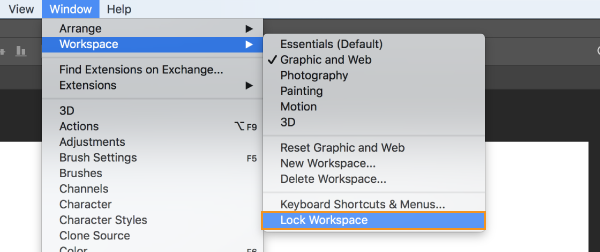
Lock Workspace option in Photoshop
For more helpful information about the workspace options, see Workspace basics.
You can now scroll over different blend mode options to see how they look on your image. Photoshop displays a live preview of blend modes on the canvas when you scroll over different blend mode options in the Layers panel and the Layer Style dialog.
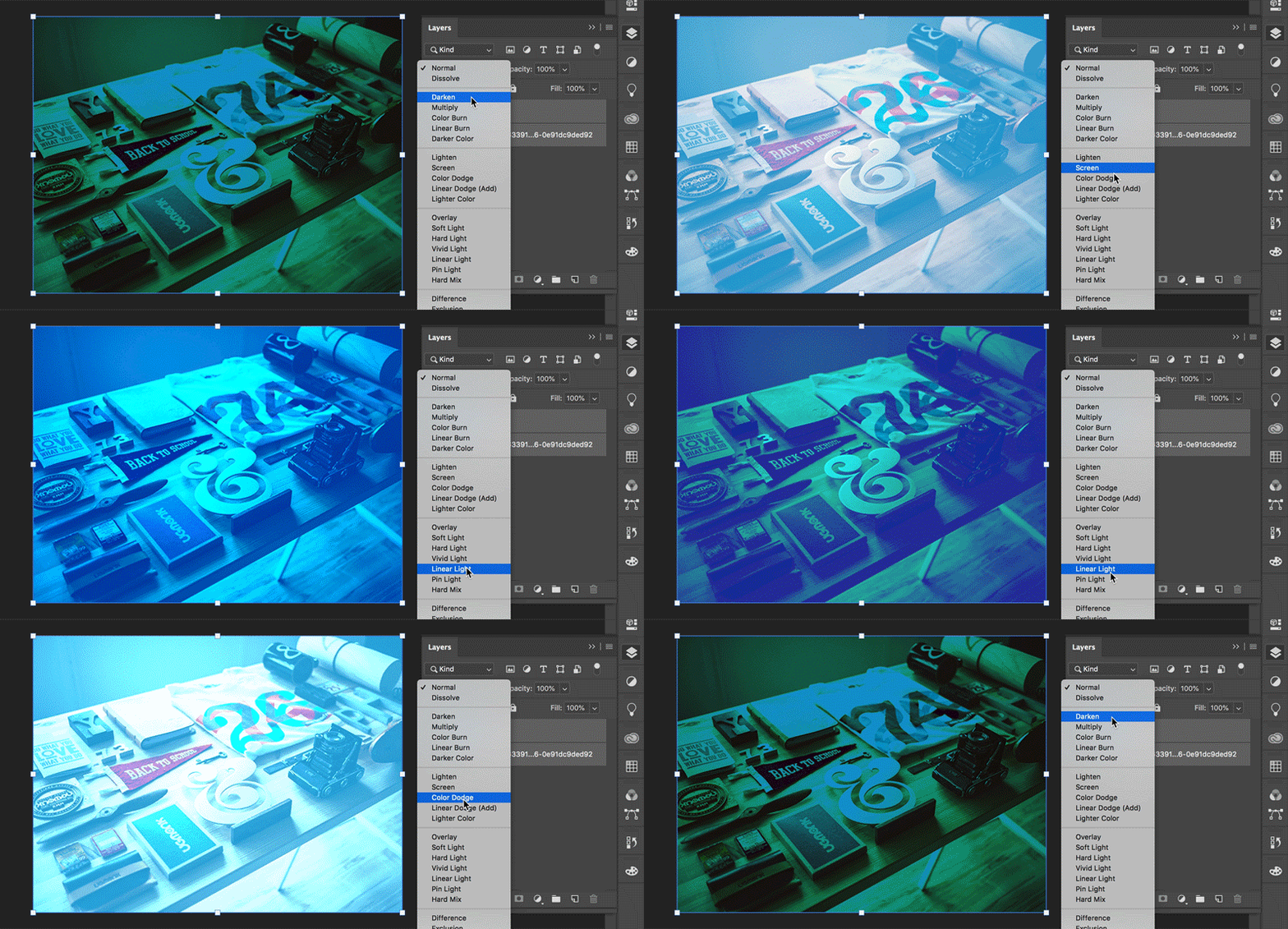
Scrolling over blend mode options in the Layers panel.
Paint your brush strokes in a perfectly symmetrical pattern. While using the Paint Brush, Mixer Brush, Pencil, or Eraser tools, click the butterfly icon ( ) in the Options bar. Choose from the several available types of symmetry - Vertical, Horizontal, Dual Axis, Diagonal, Wavy, Circle, Spiral, Parallel Lines, Radial, Mandala. As you paint, the strokes are reflected live across the line of symmetry, allowing you to easily create intricate symmetrical patterns.
) in the Options bar. Choose from the several available types of symmetry - Vertical, Horizontal, Dual Axis, Diagonal, Wavy, Circle, Spiral, Parallel Lines, Radial, Mandala. As you paint, the strokes are reflected live across the line of symmetry, allowing you to easily create intricate symmetrical patterns.
Pattern created with Mandala symmetry. (Artwork designed by Mike Shaw.)
For detailed information, see Paint symmetrical patterns.
Use the Color Wheel to visualize the color spectrum and easily choose colors based on harmonies such as complementary colors and analogous colors. From the Color panel fly-out menu, choose Color Wheel.
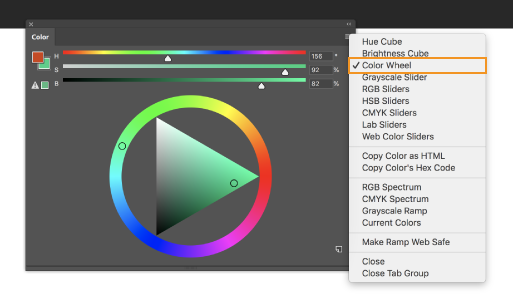
Use the Color Wheel to choose colors
Get started quickly with the Photoshop Home screen. Access it at any time to find out about new features, connect to learning content, and jump right to your open documents. Click the new Home icon 
in the Options bar to access the Home screen at any point.
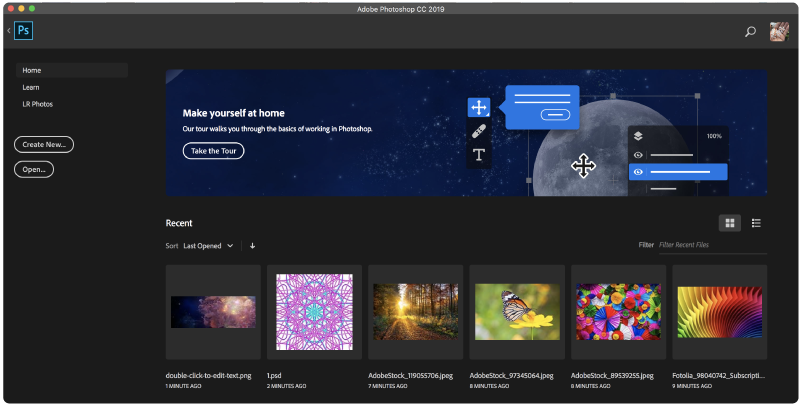
Photoshop Home screen
For more information, see Workspace basics.
After completing an in-app tutorial (Learn panel), you can now use your own images to get the looks you want in less time.

Learn with your own images
Distribute spacing (like Adobe Illustrator)
You can now distribute the spacing between the objects. Photoshop can already distribute objects by evenly spacing their center points. If your objects are different sizes, you now get an even spacing between them. For related helpful information, see Align and distribute layers.

(Left) Distribute Spacing options in Photoshop. (Right) Spacing distributed horizontally between objects.
Math in number fields
You can also perform simple math in any input box that accepts numeric values. For example, you can now type in simple math operations like 200/2, which gets calculated as 100 and inputs that final value into the field. This is very useful when trying to quickly get to a multiple of a value, or divide something up. For more information, see Use simple math in number fields.
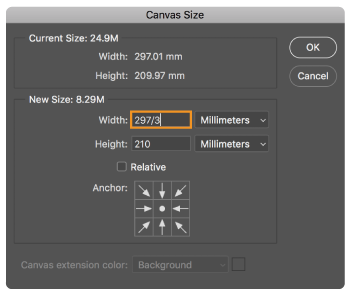
Image showing simple math in the Canvas Size dialog.
Ability to see long layer names
For long layer names, Photoshop now retains the beginning and end of the layer name and puts ellipses (...) in the middle of the name. Previously, the layer name used to get cut off at the end with ellipses (...).

Photoshop now puts ellipses (...) in the middle of long layer names.
Match Font now support Japanese fonts
You can now search Japanese fonts with Match Font. Using Adobe Sensei, Match Font allows you to detect text included in the selected area of an image and match it to licensed fonts on your computer or on Adobe Fonts, suggesting similar fonts. For more information, see Match Fonts.

Search Japanese fonts with Match Font.
Lorem Ipsum placeholder text
Get 'Lorem Ipsum' as placeholder text while placing new type layers in your document. In Type preferences (Edit > Preferences > Type), select Fill New Type Layers With Placeholder Text.
Customize keyboard shortcuts for Select and Mask
You can now modify the shortcut keys for Select and Mask workspace. Choose Edit > Keyboards Shortcuts. In the Keyboard Shortcuts And Menus dialog, choose Taskspaces from the Shortcuts For menu. In the Taskspace command column, expand the Select and Mask set to edit the shortcuts as required. For related information, see Customize keyboard shortcuts.
Get more control when scaling the Photoshop UI, and adjust it independent of your other apps to get the font size just right. In the Interface preferences (Edit >Preferences > Interface), a new setting Scale UI To Font has been introduced. When you select this new setting, the entire Photoshop UI scales based on the UI Font Size drop-down value you've chosen - Tiny, Small, Medium, or Large.
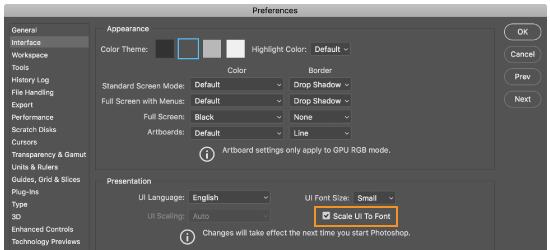
Scale UI To Font setting in the Interface preferences
Photoshop now includes the support for five new South East Asian languages, so your documents can include text in these scripts: Thai, Burmese, Lao, Sinhalese, and Khmer.
NOTE:
To use these languages properly on Windows, you must install the Language and Font packs for the particular language you want to use. For details, see Microsoft's Help documentation: Language Packs.
To create a document using one of these new languages, do the following:
- Choose Edit > Preferences > Type.
- Select the Middle Eastern and South Asian option.
- Open a document.
- Create a Type layer.
- In the Character panel, set your Language to any of the new languages: Thai, Burmese, Lao, Sinhalese, or Khmer.
- Based on the language you select, set an appropriate font. For example, if you choose Thai language, set a Thai font such as Adobe Thai or Noto Sans Thai.
- Copy and paste the text composed in the language that you choose. If you have a language-specific keyboard set up, simply type the text.
For more information, see Composers for Asian scripts.
This release of Photoshop CC introduces a new compositing engine, which provides a more modern compositing architecture that is easier to optimize on all platforms (macOS, Windows, and iOS/mobile).
For details of new features introduced in Adobe Camera Raw, see What's new in Camera Raw.
The CC Files tab provided in the Start workspace of earlier versions is no longer available. You can browse your assets by navigating to the Creative Cloud Files directory on your desktop. To open the Creative Cloud Files directory from the Creative Cloud desktop app, select Assets > Files and click Open Folder. See Browse, sync, and manage assets.
Subscribe to:
Comments (Atom)